How to Use Path-Specific Rules in Claude Code with YAML Frontmatter
I admit, I didn't use source control for one of my first projects. And there was no way for me to know which Python files had been modified outside of relying on Claude Code's memory, my own memory (yikes!), or checking for modified datetime stamps in Terminal.
I wish I had known about Claude Code's Path-Specific Rules feature. I do now, and I want to step you through a Claude Code Tutorial on using path-specific rules.
Path-Specific Rules let you only apply prompts to specific paths, specific file types, or both, in a project. And it's so simple to setup that Today's Me wants to go back in time and tell Claude Code Newbie Me all about it. Let's take a look at how it all works.
My first attempt involved me prompting Claude Code to create a new path-specific rule, but when I tried the results were less than accurate, so we're going to do this one the old fashioned way: by creating a folder and editing a file.
In your project's root directory, create a folder structure called .claude/rules.
❯ create a folder structure in this project called .claude/rules
● Bash(mkdir -p /Path-Specific-Rules/.claude/rules)
  ⎿  Running…

───────────────────────────────────────────────────────────────────────
 Bash command

   mkdir -p /Path-Specific-Rules/.claude/rules
   Create .claude directory

 Claude requested permissions to edit /Path-Specific-Rules/.claude/rules which is a sensitive file.

 Do you want to proceed?
 ❯ 1. Yes
   2. Yes, and always allow access to /Path-Specific-Rules/ from this project
   3. No

 Esc to cancel · Tab to amend · ctrl+e to explain

 ● Done. The .claude/rules folder structure has been created.
Now prompt Claude to create a file in .claude/rules called path-specific-python-rules.md:
❯ create new file in .claude/rules called path-specific-python-rules.md
  Read 1 file (ctrl+o to expand)

● The directory exists and is empty. What content would you like in the file?
Claude will ask what to place in the file. Paste the following code:
---
paths:
  - "src/py/*.py"
---

# Source Code Commenting Rules

- Anytime a file is modified, create a new comment at the top of the file that reads Modified by Michael and place the date & time it was modified
❯ ---
paths:
  - "src/py/*.py"
---

# Source Code Commenting Rules

- Anytime a file is modified, create a new comment at the top of the file that reads Modified by Michael and place the date & time it was modified

● Write(.claude/rules/path-specific-python-rules.md)

───────────────────────────────────────────────────────────────────────
 Create file
 .claude/rules/path-specific-python-rules.md
╌╌╌╌╌╌╌╌╌╌╌╌╌╌╌╌╌╌╌╌╌╌╌╌╌╌╌╌╌╌╌╌╌╌╌╌╌╌╌╌╌╌╌╌╌╌╌╌╌╌
 ---
 paths:
   - "src/py/*.py"
 ---

# Source Code Commenting Rules

 - Anytime a file is modified, create a new comment at the top of the file that reads Modified by Michael and place the date & time it was modified
╌╌╌╌╌╌╌╌╌╌╌╌╌╌╌╌╌╌╌╌╌╌╌╌╌╌╌╌╌╌╌╌╌╌╌╌╌╌╌╌╌╌╌╌╌╌╌╌╌╌
 Do you want to create path-specific-python-rules.md?
 ❯ 1. Yes
   2. Yes, and allow Claude to edit its own settings for this session
   3. No

 Esc to cancel · Tab to amend
Confirm you want the file created.
● Created .claude/rules/path-specific-python-rules.md. This rule will automatically apply whenever files matching src/py/*.py are modified, adding a "Modified by Michael" comment with the date and time at the top of the file.
Let's stop here and talk about the rule we just created. There are a couple of important items to note:
- Path-specific rules have a frontmatter entry called paths. Without the paths directive, this becomes any other rule and will load on session start automatically.
- Path-specific rules only load when they are needed, saving context space.
Now let's prompt Claude Code to modify one of the Python src files and see what happens.
❯ Update the authorize.py file in src/py/, adding a line to the top to say print("Authorize.py")
  Read 1 file (ctrl+o to expand)

● The file is empty. Since this matches the src/py/*.py path-specific rule, I'll add both the print statement and the "Modified by Michael" comment with the current date and time.

● Write(src/py/authorize.py)
  ⎿  Wrote 2 lines to src/py/authorize.py
     # Modified by Michael on 2026-03-23
     print("Authorize.py")

● Done. Added print("Authorize.py") and the "Modified by Michael" comment per the path-specific rule.
And now let's take a look at the Authorize.py file contents:
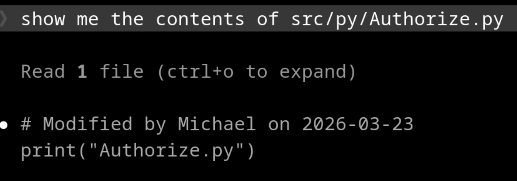
You'll see that the Time component was not added to the comment. I guess I need to work on my prompting skills.
Now Let the Real Learning Begin
Now that we have gone through that entire exercise, I want to let you in on a little secret: we didn't need a path-specific rule for the work we just did. It works just fine as a path-specific rule, but this could have been accomplished just as easily with a CLAUDE.md file in the src/py folder with the same prompt.
Before you fling an army of angry rubber chickens at me, you're much closer to understanding path-specific rules now than you were a few minutes ago, so let's increase the complexity just slightly and change the user case to one that would require this type of rule.
Can you think of a situation where you'd need to update a bunch of files but they're all in different subdirectories? Maybe you need to add comments to all files recursively but the path structure is dynamic. That's where path-specific rules really shine because they support glob patterns. Glob patterns are sort of like LIKE operators. They're able to designate folder recursion without knowing all the specifics of your project's folder structure.
Let's look at a couple of examples of glob patterns.
paths: ["src/**/*"]
paths: ["**/*.html"]
The first example will find any file in any folder under src. The second example will find any file ending in .html in any folder in the project, including subfolders.
Do you see how this could be useful? If you have .html files scattered across your project four levels wide and 15 levels deep, you can use path-specific rules to modify them instead of placing a CLAUDE.md file in each subdirectory, and then remembering to do that every time a new subdirectory is created.
To update our first exercise above to find all files ending in .html across all folders under src, our rules file would look like this:
 ---
 paths:
   - "src/**/*.html"
 ---

# Source Code Commenting Rules

 - Anytime a file is modified, create a new comment at the top of the file that reads Modified by Michael and place the date & time it was modified
When to Use Subdirectory CLAUDE.md vs Path-Specific Rules
- Use a subdirectory CLAUDE.md when conventions are in one directory and you want them loaded at session start.
- Use path-specific rules when conventions exist in multiple directories or match file types across the entire project and you want them loaded only when needed.
Path-Specific rules can cut down on your project maintenance by eliminating several disparate CLAUDE.md files in lieu of a one or a few rule files. Path-Specific Rules can be useful for managing projects that haven't-quite-made-it-to-source-control, and you can create them to modify the same file types (or not!) across your entire codebase with one simple rule. In fact, I'm already thinking about using them to enforce comment standards across all my test files regardless of where they live. What use cases come to mind for you?
Preparing for the CCA exam? Start with our overview: What Is Anthropic's Claude Certified Architect Exam?